
Alarms and the wall
The alarm register
Section titled “The alarm register”The router checks itself every minute and keeps one row per problem, with the time it started. An alarm is raised after 2 failing checks in a row (a critical service and the DHCP service are raised at once), and cleared after 2 good checks. Each raise and clear is kept in a history.
dtvsol alarms # what is wrong now, and since whendtvsol alarms all # with the ones cleared in the last 7 daysdtvsol alarms history 50 # the last 50 raises and clearsEach alarm has a level (critical, warning or info) and an area:
| Area | What it covers |
|---|---|
| OLT | the OLTs, their PON ports, feeder fibers, the collector |
| Clients’ ONUs | fiber levels, line errors, ONTs gone offline |
| Network | the uplink and default route, bonds and their LACP members, ports without link, flapping links |
| Server | CPU, memory, out-of-memory kills, temperatures, disks, the router’s units and timers |
| Services | DHCP, address pools, CGNAT, anti-spoofing, the licence |
Some of the checks:
- the uplink port or bond is down, or there is no default route;
- a bond member has no link or is outside the LACP aggregator;
- a port that carries addresses or VLANs has no link, or its link changes often;
- a router unit failed or stopped, or a timer’s job failed;
/or/optis 90 % full (critical at 95 %);- CPU busy above 90 %, available memory below 10 %, the connection-tracking table above 80 %, a sensor near its limit, errors and overruns on a port;
- the OLT collector’s fiber warnings (see OLTs);
- the licence ends within 14 days, is invalid, or its last refresh failed.
Cleared alarms and their events are deleted after 90 days.
Health readings
Section titled “Health readings”Every check also records the router’s health: CPU (and the busiest core’s softirq, where a router’s packet work shows), memory, temperatures, disks, the connection-tracking table, and each port’s errors and overruns per minute. The monitor’s Alarms tab shows these readings beside each area’s alarms.
Alerts
Section titled “Alerts”dtvsol alerts lists the conditions worth attention right now, without the history: DHCP down,
VLAN links down, pools and CGNAT nearly full, unknown devices, anti-spoofing drops, fiber
warnings and the licence. The alarm register is built on these checks and adds the router’s own.
dtvsol alertsThe configuration doctor
Section titled “The configuration doctor”dtvsol doctor # everything, including the registered OLTdtvsol doctor --no-olt # the router only (fast)The doctor audits the configuration and whether it survives a reboot. Each finding has a severity, the problem, the detail and a fix. See Troubleshooting for its areas.
The 24/7 wall
Section titled “The 24/7 wall”The wall is a page for a screen in the support room. It is dark, large, readable from across the room, and has nothing to click.
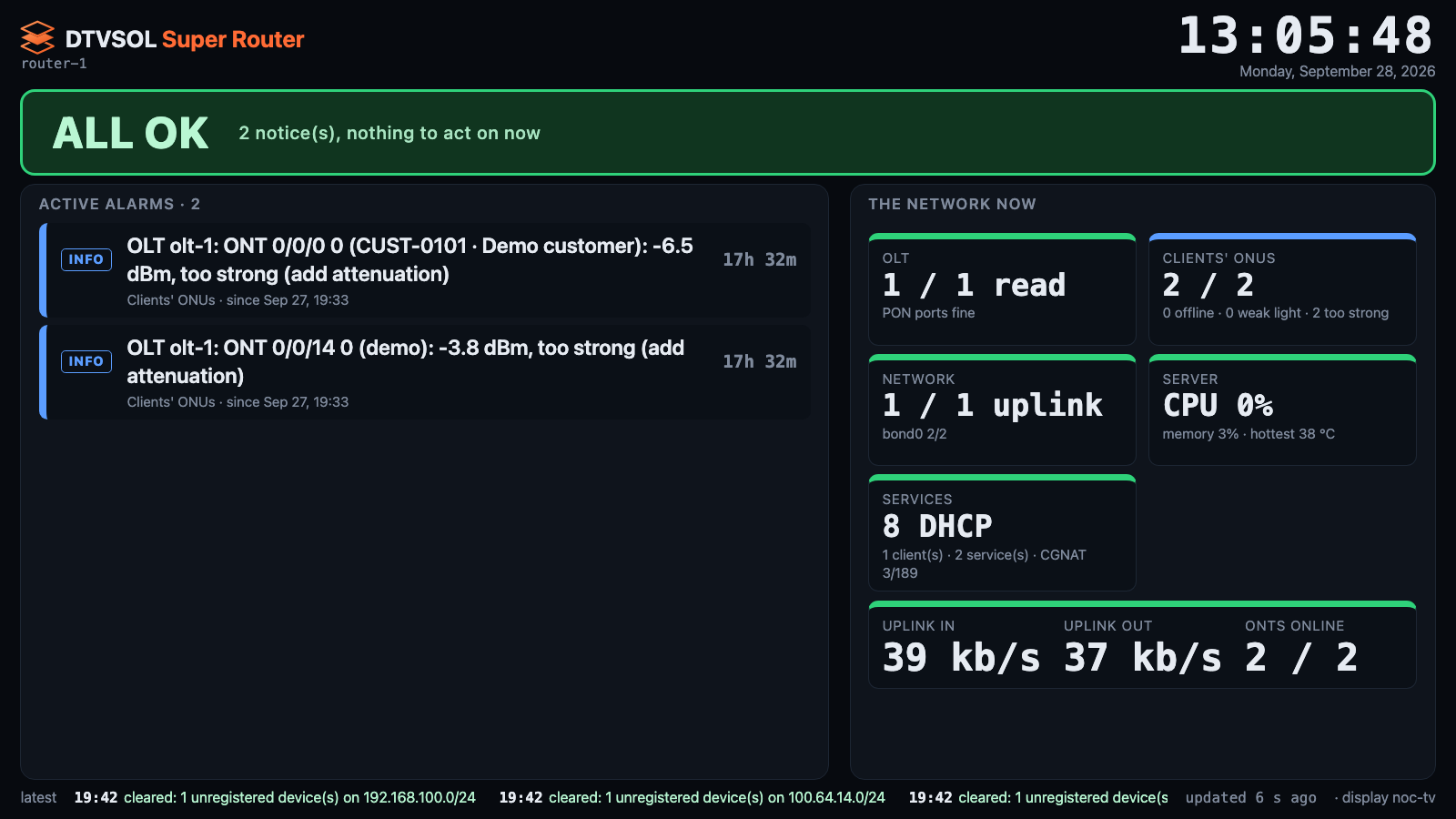
It shows:
- a band at the top: ALL OK, the number of WARNINGS, or the number of CRITICAL alarms (pulsing);
- the active alarms, worst and oldest first, with how long each has lasted. Alarms raised in the last 10 minutes pulse;
- one tile per area: OLTs read, ONTs online and weak light, the uplink and bonds, CPU, memory and temperature, DHCP, clients, services and CGNAT use;
- the uplink traffic in and out, and ONTs online;
- the latest raises and clears.
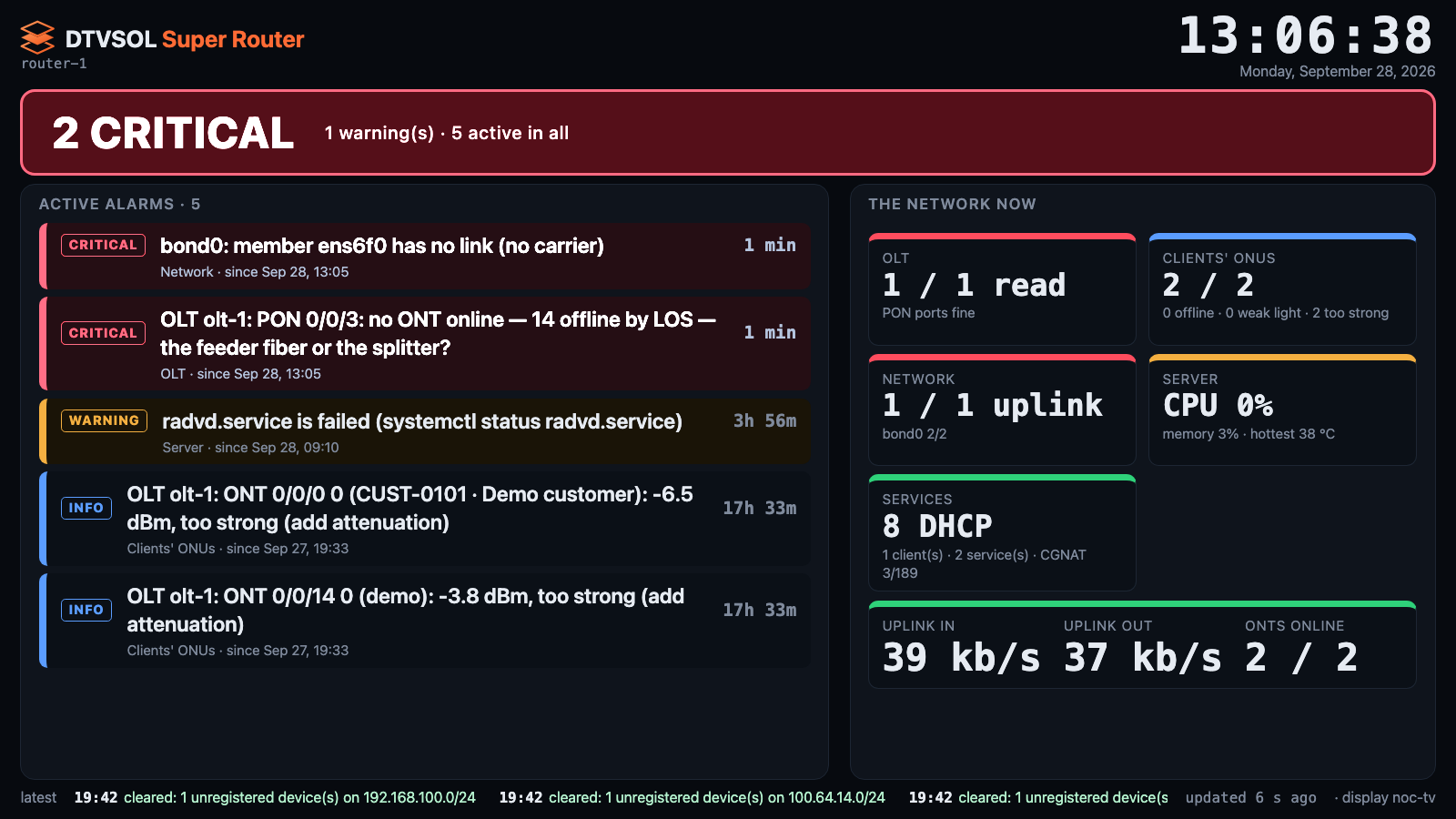
The page refreshes every 15 seconds. If the router has not answered for a minute, the band turns to NO CONTACT WITH THE ROUTER and the rest greys out, so an old picture is never mistaken for a good one.
Set up a screen
Section titled “Set up a screen”A wall screen does not use a person’s login. It uses a display key that can only show the wall.
-
Create a key for the screen. The command prints a link:
Terminal window dtvsol monitor wall add support-tvwall-add: support-tv. Open this once on the screen (it stays signed in, for the wall only):https://XXX.XXX.XXX.10:8881/wall?k=<key>The screen's address must be allowed: dtvsol protect add <its address>. -
Allow the screen’s address:
Terminal window dtvsol protect add XXX.XXX.XXX.40 "support-tv" -
On the screen, open the link once in its browser. Accept the self-signed certificate. The key becomes the browser’s cookie, and the page moves to
https://<router>:8881/wall.
The key does not expire until you revoke it. Keep the link private: any browser on an allowed address that opens it can show the wall. It cannot change anything.
Kiosk mode
Section titled “Kiosk mode”Run the browser full screen, without toolbars, and start it with the wall. For example, with Chromium on a small Linux PC:
-
Open the link once in a normal Chromium window (step 3 above), so the certificate is accepted and the cookie is stored in that profile.
-
Start Chromium in kiosk mode with the same profile, at login:
Terminal window chromium --kiosk --noerrdialogs --disable-session-crashed-bubble \https://XXX.XXX.XXX.10:8881/wall -
Turn off the screen saver and power saving on the PC and on the TV.
The page asks the browser to keep the screen on where it can, shifts the picture by a few pixels every 10 minutes to protect the panel, and reloads itself about once a day to pick up a new version.
Manage screens
Section titled “Manage screens”dtvsol monitor walls # the screens with a keydtvsol monitor wall del support-tv # revoke itA revoked screen shows THIS SCREEN’S KEY WAS REVOKED at its next refresh. To give it a new key, delete the old one and add it again.
A signed-in monitor user can open /wall too. See The wall.